Use the ComputeNexa API
The ComputeNexa API lets your scripts, CI jobs or platform do what you do in the dashboard: see prices, launch private GPUs, check on them and stop them. It's the same API the dashboard uses, at https://api.computenexa.com/v1, with an API key instead of a sign-in.
Using Python? Use the SDK
pip install computenexa gives you the same API as Python methods, with waiting, retries and clear errors built in. See Python SDK. This page is for every other language, and for curl; both need an API key (step 1).
pip install computenexa1. Create an API key
Owners and admins of a team create keys; members ask one of them.
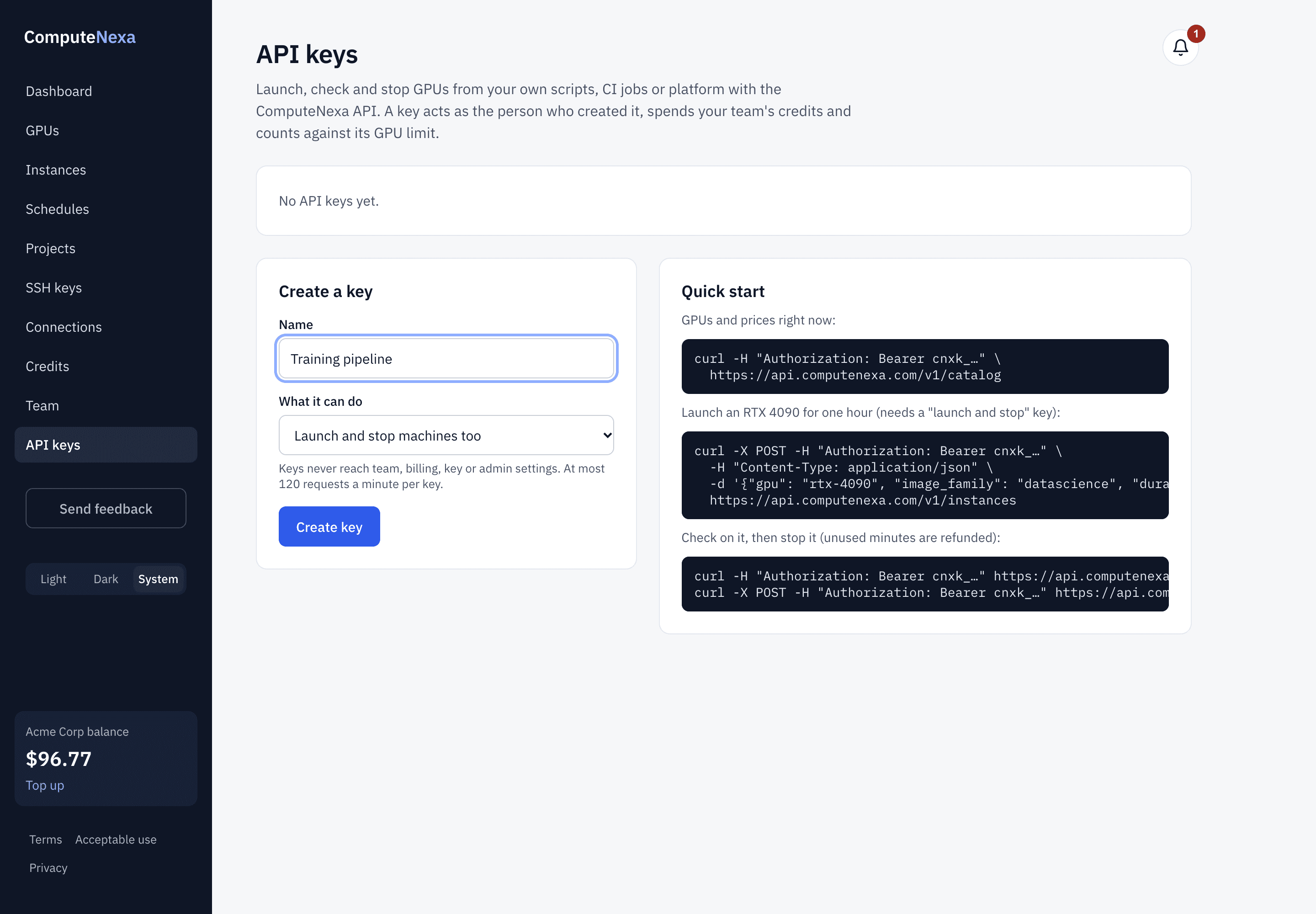
- In the dashboard, open API keys in the sidebar.
- Name the key after what will use it, e.g. "Training pipeline".
- Choose what it can do: Look only (prices, machines, balance) or Launch and stop machines too.
- Click Create key.
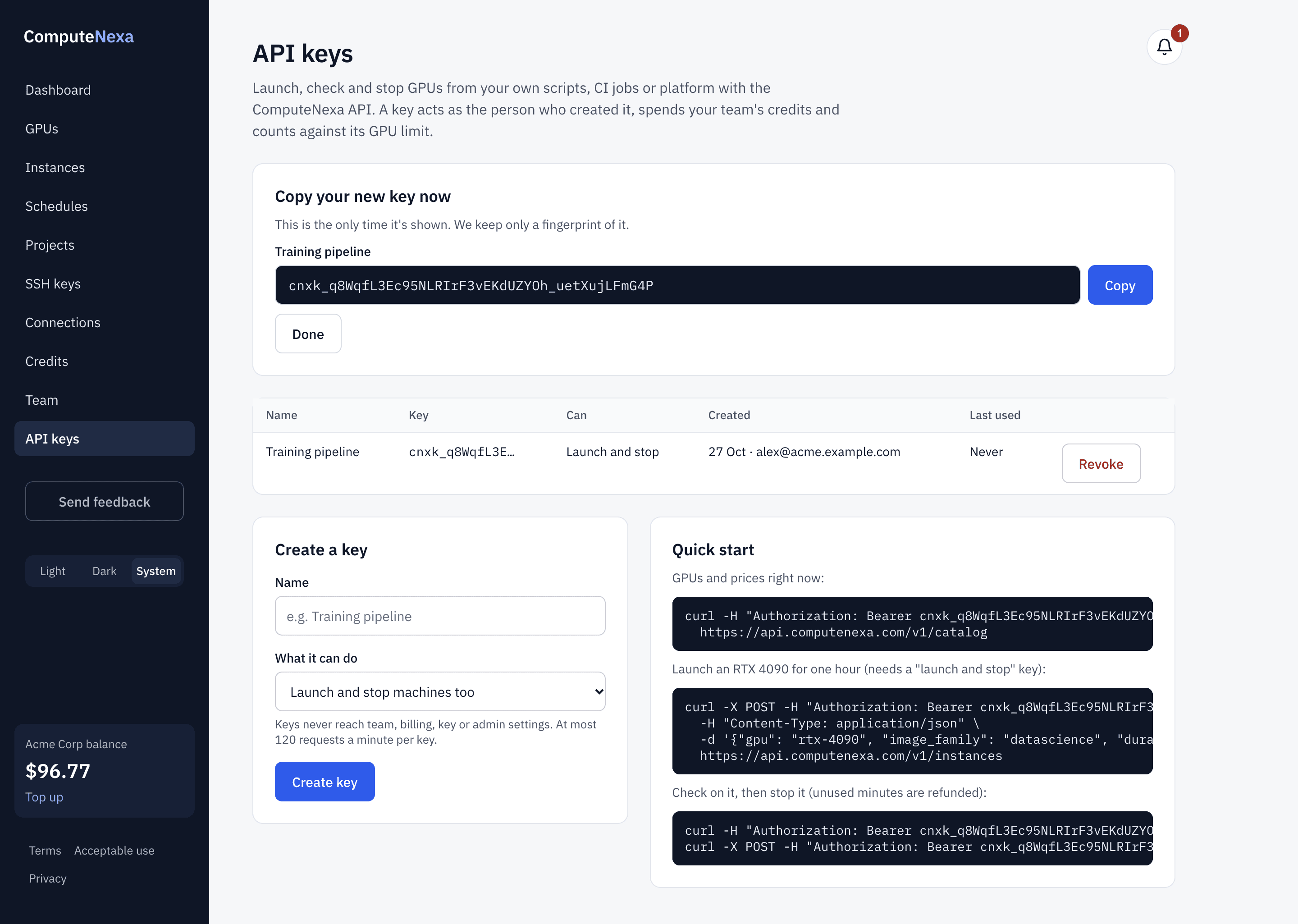
The key starts with cnxk_ and is shown only once: copy it straight away. We keep only a fingerprint of it, so we can't show it again; if it's lost, revoke it and create a new one.
2. Keep it safe
- Treat a key like a password. Store it in your secrets manager or an environment variable, never in your code or a repository.
- Use a look only key wherever you don't need to launch.
- One key per script or system, so you can revoke one without breaking the others.
- If a key may have leaked, click Revoke on the API keys page: it stops working at once. Machines it launched keep running until you stop them.
3. Make your first call
Send the key in the Authorization header of every request:
export CNX_API_KEY="cnxk_..."
curl -H "Authorization: Bearer $CNX_API_KEY" https://api.computenexa.com/v1/me
The reply says who the key acts as, your team, its balance and its GPU limit:
{"email": "alex@acme.com", "balance_cents": 9677, "max_concurrent_gpus": 4,
 "organization": {"name": "Acme Corp", "role": "owner", "members": 4}, ...}
Amounts are in US cents: 9677 is $96.77. Times are ISO 8601, in UTC.
4. Find a GPU and its price
curl -H "Authorization: Bearer $CNX_API_KEY" https://api.computenexa.com/v1/catalogEach entry in gpus has a slug (what you launch with), display_name, vram_gb, price_per_hour_cents, available, billing_unit (minute, or hour for GPUs billed per started hour), regions and families (the apps it runs). ?region=us or ?region=ca lists only GPUs in that country, at that region's price.
5. Launch, wait, stop
# Launch: charged now for the booked time
curl -X POST https://api.computenexa.com/v1/instances \
  -H "Authorization: Bearer $CNX_API_KEY" -H "Content-Type: application/json" \
  -d '{"gpu": "rtx-4090", "image_family": "datascience", "duration_minutes": 120}'

# Check on it every 10-30 seconds until "state" is "running"
curl -H "Authorization: Bearer $CNX_API_KEY" https://api.computenexa.com/v1/instances/cnx-7f3a9c

# Add an hour
curl -X POST https://api.computenexa.com/v1/instances/cnx-7f3a9c/extend \
  -H "Authorization: Bearer $CNX_API_KEY" -H "Content-Type: application/json" -d '{"minutes": 60}'

# Stop: unused minutes are refunded
curl -X POST -H "Authorization: Bearer $CNX_API_KEY" https://api.computenexa.com/v1/instances/cnx-7f3a9c/stop
A machine is named by its id, like cnx-7f3a9c. Its state goes requested → provisioning → running → stopping → terminated (or failed if it couldn't start, with a full refund). While it runs, the reply includes ssh_command, time_left_seconds, expires_at and cost_so_far_cents; at the end, end_reason and refunded_cents.
Choose the app: image_family
image_family is the same choice as What do you want to do? on the launch page:
| On the launch page | In the API (image_family) | Pick it to… | AI model | SSH key |
|---|---|---|---|---|
| Private Chat | chat | Chat with open AI models about your documents, in your browser | Optional (recommended one by default) | Not needed |
| Image Generation (ComfyUI) | imagegen | Create images with SDXL or FLUX in ComfyUI, in your browser | Optional (recommended one by default) | Not needed |
| Model API (vLLM) | modelapi | An AI model behind your own API key, for your apps and scripts | Required | Not needed |
| Voice Agent | voice | Speech in, spoken AI reply out: assistants and phone agents | Required (one offered) | Not needed |
| Notebook (Jupyter) | datascience | JupyterLab with PyTorch, pandas and Hugging Face: analysis, training, fine-tuning | None | Recommended |
| Basic (SSH only) | basic | Ubuntu with CUDA and Python for your own code, over SSH or VS Code | None | Required |
A GPU runs only the apps in its families in GET /v1/catalog. For apps that take a model, launch_models[<family>] in the catalog lists the models (with the GPU memory each needs) and the recommended one per GPU size; leave model out to get the recommended one. What's installed in each app's images, package by package: GET /v1/images/<family> (no key needed), also shown at What's in each image.
Launch fields
| Field | Needed | What it is |
|---|---|---|
gpu | Required | A GPU's slug from /v1/catalog, e.g. rtx-4090, l40s, a100-80gb |
image_family | One of these two | The app: basic, datascience, chat, imagegen, modelapi or voice (see families in /v1/catalog) |
image | One of these two | An exact image slug from the GPU's images list, instead of image_family |
duration_minutes | Required | How long to book, in minutes (up to 7 days). Some GPUs bill per started hour: whole hours |
gpu_count | Optional | GPUs in one machine (default 1) |
region | Optional | any (default), us or ca: keep the machine in that country |
label | Optional | A name to tell your machines apart |
model | Optional | The model to prepare first for chat, image and model API apps (default: the recommended one) |
project_id | Optional | Restore a project's files on the machine and save them back |
SSH uses the SSH keys on your account (see Getting started); apps that open in the browser don't need one. Browser apps are opened from the dashboard.
6. Example in Python
With the Python SDK, the launch, wait and stop above become:
# pip install computenexa
from computenexa import Client

cnx = Client()                       # reads CNX_API_KEY

# Launch an RTX 4090 with Jupyter for 2 hours; stopped when the block ends,
# even if your code fails, and unused minutes are refunded.
with cnx.gpu("rtx-4090", app="datascience", hours=2, label="nightly training") as machine:
    print(machine.id, machine.ssh_command)
    # ... run your job over SSH ...
7. What you can call
The API reference lists every operation by name (for example listProjects, createProject, launchInstance) with all its fields.
| Task | Request | Key needed |
|---|---|---|
| GPUs, prices, stock, apps | GET /v1/catalog | Look only |
| Your account, team, balance and GPU limit | GET /v1/me | Look only |
| Your machines (add ?status=active or ended) | GET /v1/instances | Look only |
| The team's machines (owners and admins) | GET /v1/instances?whose=everyone | Look only |
| One machine's status | GET /v1/instances/{id} | Look only |
| Launch a GPU | POST /v1/instances | Launch and stop |
| Add time | POST /v1/instances/{id}/extend | Launch and stop |
| Stop (unused time refunded) | POST /v1/instances/{id}/stop | Launch and stop |
| Cancel before it starts (full refund) | POST /v1/instances/{id}/cancel | Launch and stop |
| Balance | GET /v1/balance | Look only |
| Charges and top-ups | GET /v1/ledger | Look only |
| Projects (saved work) | GET /v1/projects | Look only |
| SSH keys | GET, POST /v1/ssh-keys | Look only to list; launch and stop to add |
| Schedules | /v1/me/schedules | Look only to list; launch and stop to change |
Team, billing, API key and admin settings aren't reachable with a key, whatever it can do: they need a person signed in to the dashboard.
8. Limits and safety
- A key acts as the person who created it, with their rights in the team, and spends the team's credits. It stops working when it's revoked, or when that person leaves the team.
- Spending is capped by your team: a script can't run more GPUs than the team's limit (or that person's own limit), or spend more than the balance. There are no surprise bills.
- Rate limit: 120 requests a minute per key. Poll a starting machine every 10-30 seconds.
- Every launch is charged up front for its booked time; stop early and the unused time is refunded.
9. Errors
Every refusal has the same shape, with a stable code to check and a message you can show:
{"error": "insufficient_credits", "message": "Not enough credits for this duration.", "request_id": "a0ab1c25..."}| HTTP | error | Meaning |
|---|---|---|
| 401 | not_signed_in | Key missing, mistyped or revoked, or its creator left the team |
| 402 | insufficient_credits | Not enough credits for this duration |
| 403 | forbidden | The key can't do this: a look-only key, or a dashboard-only setting |
| 404 | not_found | No such machine, or not one you can see |
| 409 | gpu_limit_reached | Your team (or you) already run as many GPUs as allowed |
| 409 | no_capacity | That GPU is fully booked right now: retry or pick another |
| 409 | not_running | Only a running machine can be extended or stopped |
| 422 | unknown_gpu, invalid, … | A field is missing or wrong; the message says which |
| 429 | rate_limited | More than 120 requests a minute with this key |
Writing to support? Include the request_id and we can trace exactly what happened.
More guides
- Getting started: rent your first GPU: Sign up, pick a GPU and an app, launch it, connect, and stop it when you're done.
- Set up your organization and invite your team: One shared balance for your company: roles, invitations, GPU limits and who can see what.
- Python SDK: pip install computenexa: launch, use and stop GPUs from Python, with waiting and clear errors built in.
- Command-line tool (cnx): cnx launch, ls, ssh, stop: your GPUs from the terminal, scripts and CI.
- API reference: Every API operation by name (listProjects, launchInstance…), with its request and reply.
- What's in each image: Exactly what's installed in each app's images: Ubuntu, CUDA, Python, packages and versions.
- Run your own app in the browser: Open your own Streamlit, Gradio or FastAPI app on your GPU with one click.
Questions? Email support@computenexa.com.