Set up your organization and invite your team
Your company gets one ComputeNexa organization: one shared credit balance, one GPU limit, and everyone signing in with their own login. Each person launches their own private GPUs; owners and admins look after the team and its spending.
How it works
- One balance. Every launch is paid from the team's credits, and every running GPU counts against the team's GPU limit. One person adds credits for everyone.
- Everyone has their own login. People sign in with their own email; nobody shares a password.
- Privacy inside the team. Owners and admins can see that a machine is running, who launched it and what it costs, and can stop it. Only the person who launched a machine can open it: its apps, SSH access and keys stay theirs. A legal team's work stays the legal team's.
- Pay as you go. A launch is charged for its booked time up front; unused time goes back to the team's balance when a machine stops early.
Roles
There are three roles. A team always has at least one owner; admins are optional.
| Action | Member | Admin | Owner |
|---|---|---|---|
| Launch, open and stop their own GPUs | Yes | Yes | Yes |
| See everyone's GPUs, and extend or stop them | No | Yes | Yes |
| Open a colleague's GPU (apps, SSH, keys) | No | No | No |
| Invite and remove people | No | Yes | Yes |
| Change roles and per-person GPU limits | No | Yes | Yes, including owners |
| Add credits and set the low-balance email | No | Yes | Yes |
| See the whole team's charges and top-ups | Own only | Yes | Yes |
| Create and revoke API keys | No | Yes | Yes |
| Rename the team | No | No | Yes |
A typical small company: the founder or IT lead is the owner, one or two team leads are admins, and everyone else is a member.
1. Getting started as the owner
ComputeNexa creates your organization, with its starting credits and GPU limit, and invites its first owner by email. The invitation looks like this:
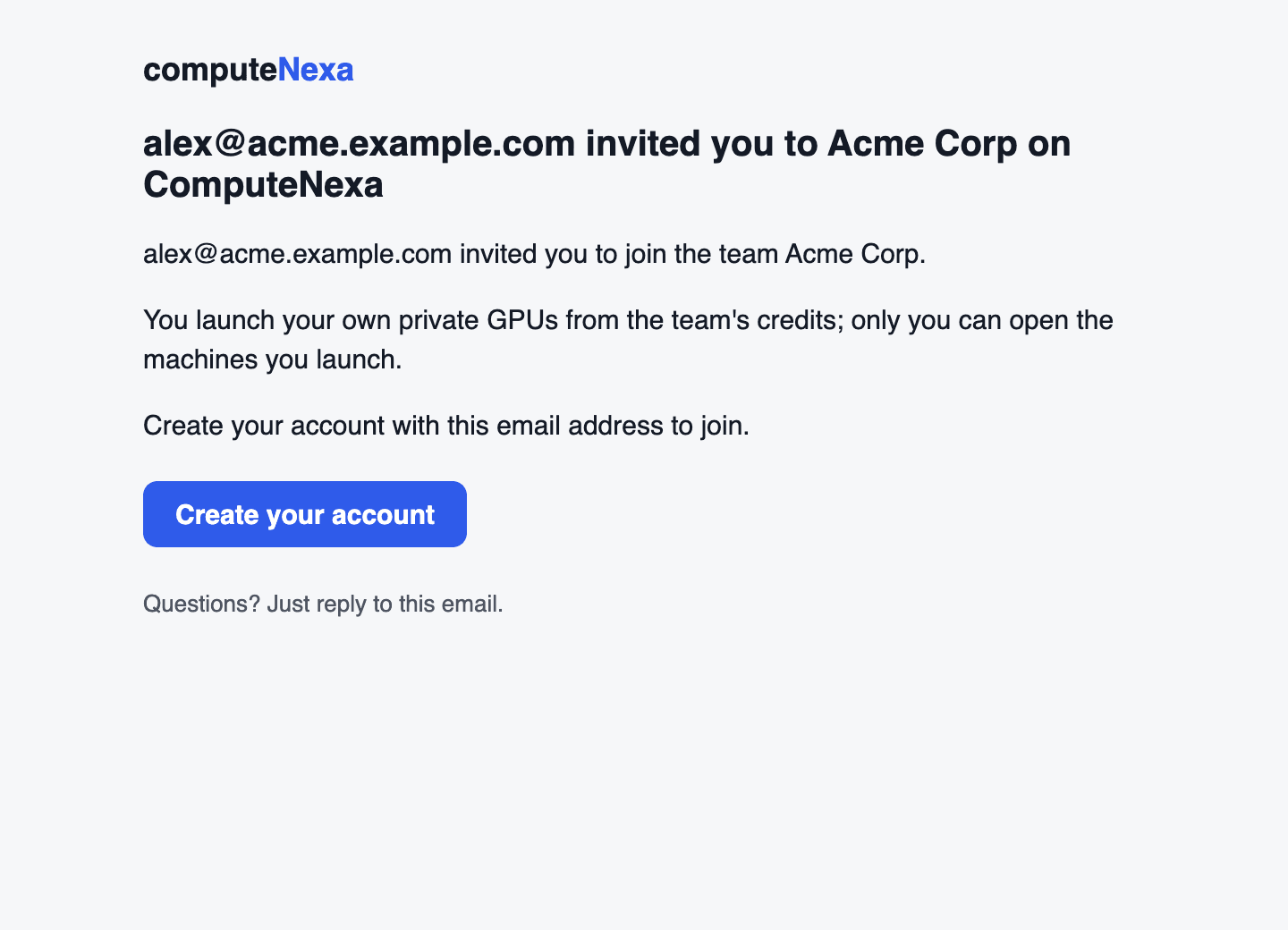
- Click Create your account in the email.
- Sign up with the same email address the invitation was sent to. A different address isn't linked to your team.
- You land in your team as Owner, with its credits ready to use.
- Open Team in the sidebar to see your team's name, balance and GPU limit.
- Add your SSH key under SSH keys, and ask everyone you invite to add theirs on their first day: it's how they'll work on their GPUs from VS Code or a terminal. See Getting started, step 3.
Already have a ComputeNexa account of your own? If it has no credits and has never launched a GPU, you're moved into the team as soon as you're invited. Otherwise, email support@computenexa.com and we'll move you.
2. The Team page
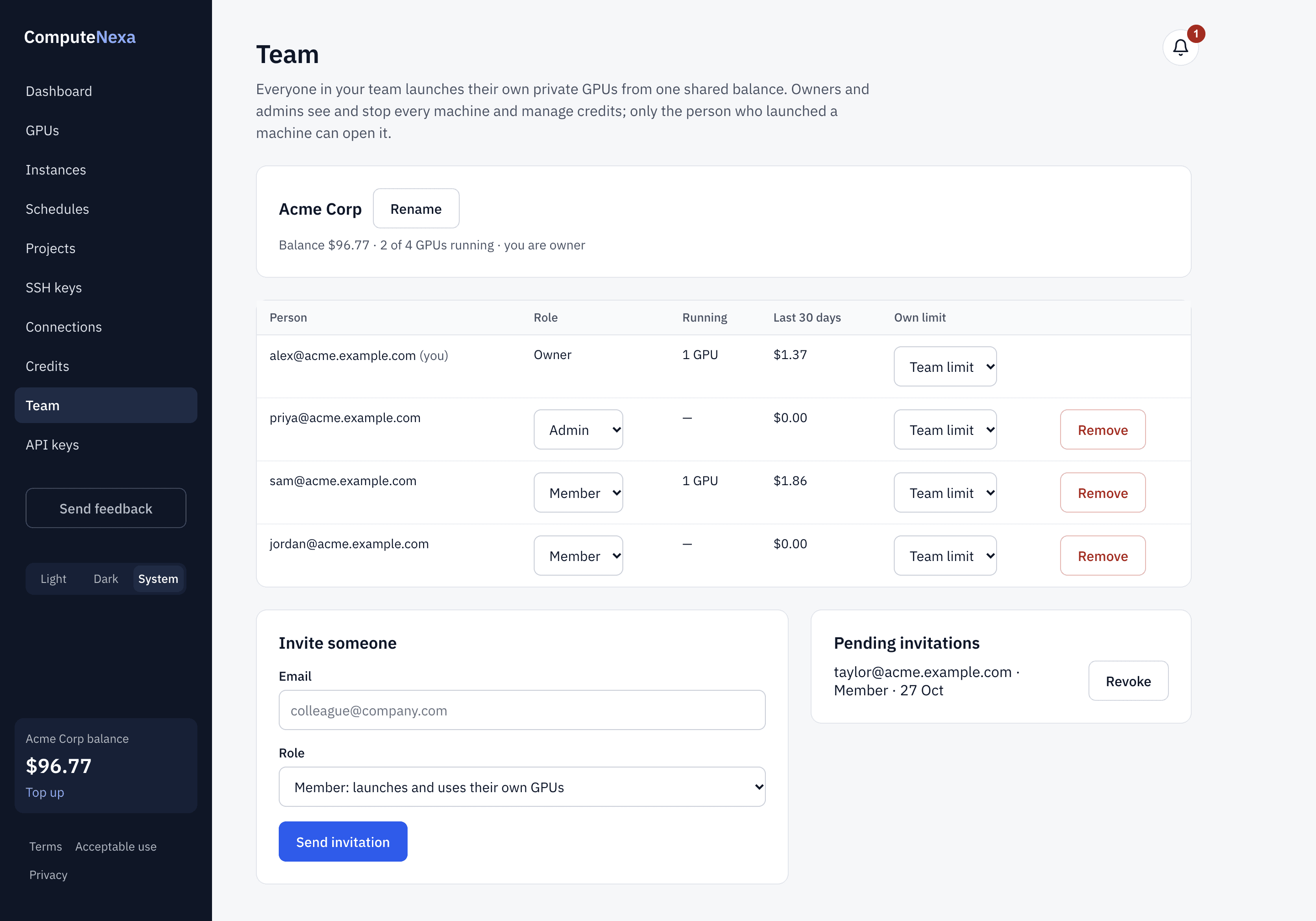
Team shows everyone in your organization: their role, how many GPUs they're running, what their machines cost in the last 30 days, and their own GPU limit. Owners and admins also see the invite form and pending invitations. Members see who's in the team, read-only.
3. Invite your colleagues
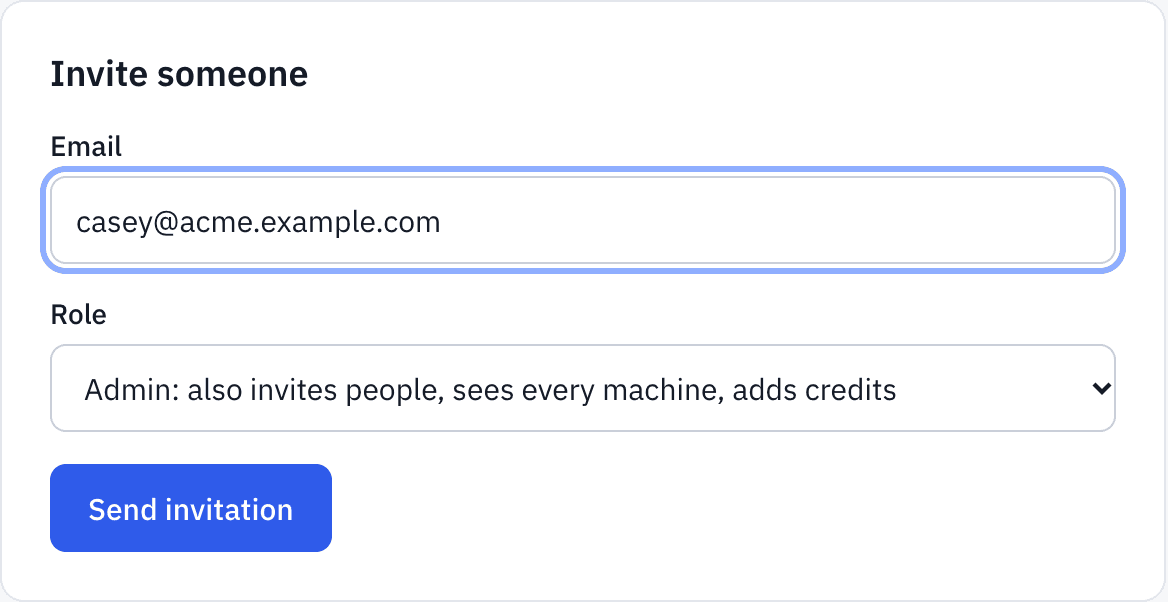
- On Team, go to Invite someone.
- Enter their work email.
- Choose a role: Member (launches and uses their own GPUs) or Admin (also invites people, sees every machine, adds credits). Only an owner can invite another owner.
- Click Send invitation.
They get an email, sign up with that address, and join your team straight away: no approval needed. Pending invitations are listed beside the form; Revoke cancels one that hasn't been used. If they already use ComputeNexa with an empty account, they're added at once.
4. Change roles and limits
- Role: pick a new one in the person's row. Admins change members and admins; only an owner makes or unmakes owners. To step down as the last owner, make someone else owner first.
- Own limit: how many GPUs one person can run at once, below the team's limit, so nobody uses all the capacity. "Team limit" means no extra cap.
- The team's limit (how many GPUs the whole team can run at once) is set by ComputeNexa. To raise it, email support@computenexa.com.

5. See and manage the team's machines
On Instances, owners and admins can switch between Mine and Everyone in your team. A colleague's machine shows who launched it, how long it has left and what it costs. You can extend or stop it, but only they can open it.

When an admin stops a colleague's machine, the colleague is told "An admin on your team stopped it", and the unused time goes back to the team's balance.
6. Credits and spending
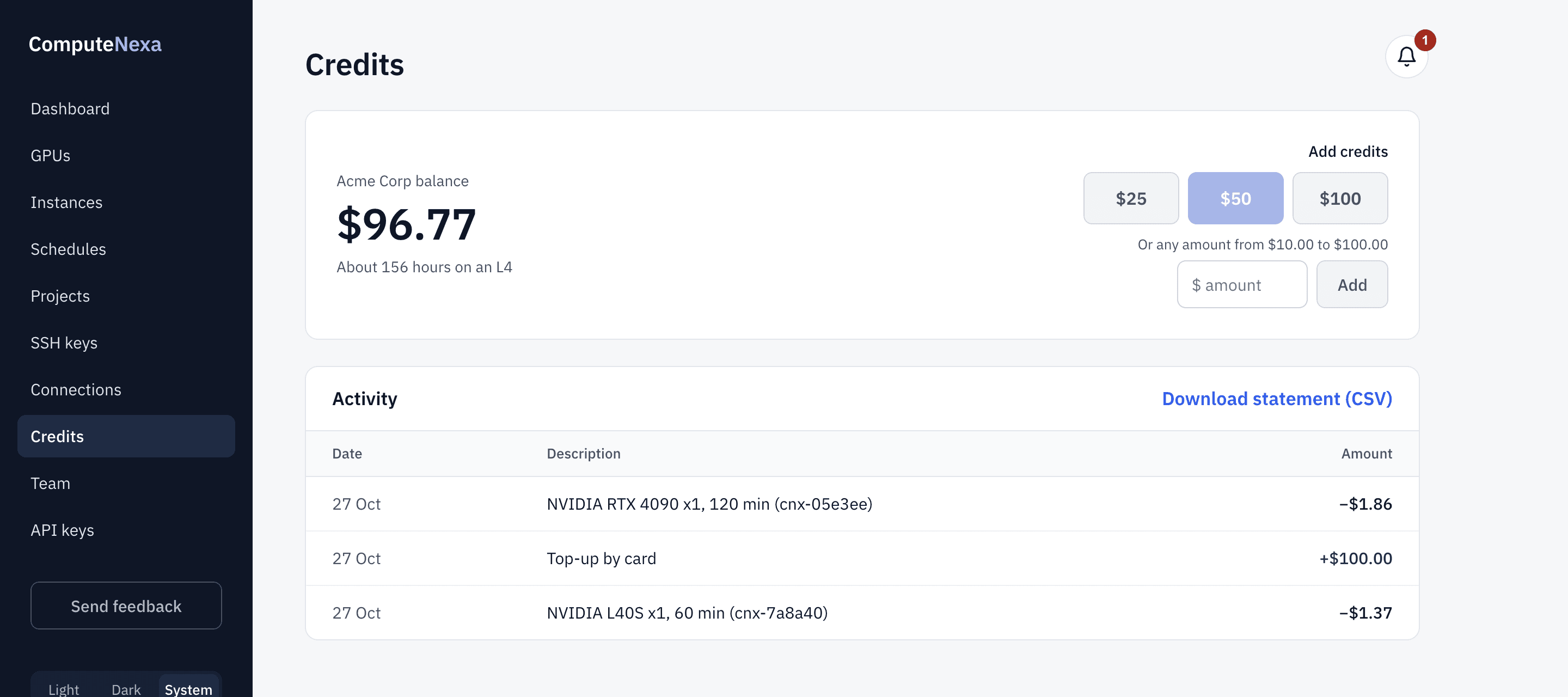
- Add credits: owners and admins top up by card on Credits. Members see the balance but can't pay.
- Low-balance email: on the Dashboard, owners and admins can ask to be emailed when the balance drops below an amount. It goes to every owner and admin.
- Activity: owners and admins see all the team's charges and top-ups, and can download a statement (CSV). A member sees the charges they caused.
- When credits run low: running machines keep their booked time; new launches and extensions need enough credit to cover them.
7. Remove someone
Click Remove in their row and confirm. Their running machines stop at once, with unused time refunded to the team; their schedules are paused and their API keys stop working. They keep their login, with an empty account of their own. Their past charges stay in the team's activity.

Questions
- A colleague signed up but isn't in our team. They probably used a different email from the one invited. Invite the address they signed up with.
- Can an admin see what a colleague is doing on their GPU? No. Admins see that it runs, who launched it and what it costs, and can stop it; only the person who launched it can open it.
- Can we have departments with separate budgets? Not yet inside one organization; ask us about separate organizations per department.
- Can our scripts launch GPUs? Yes: see Use the ComputeNexa API.
More guides
- Getting started: rent your first GPU: Sign up, pick a GPU and an app, launch it, connect, and stop it when you're done.
- Use the ComputeNexa API: Launch, check and stop GPUs from your own scripts, CI jobs or platform with an API key.
- Python SDK: pip install computenexa: launch, use and stop GPUs from Python, with waiting and clear errors built in.
- Command-line tool (cnx): cnx launch, ls, ssh, stop: your GPUs from the terminal, scripts and CI.
- API reference: Every API operation by name (listProjects, launchInstance…), with its request and reply.
- What's in each image: Exactly what's installed in each app's images: Ubuntu, CUDA, Python, packages and versions.
- Run your own app in the browser: Open your own Streamlit, Gradio or FastAPI app on your GPU with one click.
Questions? Email support@computenexa.com.