Getting started: rent your first GPU
A ComputeNexa GPU is a machine reserved for you, with your choice of app ready on it: a private chat with open models, an AI model behind your own API, image generation, a voice agent, Jupyter notebooks or plain Ubuntu with CUDA. You pay by the minute from prepaid credits, and you can stop it any time.
How it works, in short
- Get access. Request an invitation, or join your company's team.
- Add credits. Prepaid, by card; your invitation may include free credits to start.
- Add your SSH key, once, so you can work on your GPUs from VS Code or a terminal.
- Pick a GPU and an app, choose how long, and launch. It's ready in about a minute (a few minutes when a model is downloaded first).
- Use it in your browser with one click, or over SSH and VS Code.
- Stop it when you're done: unused minutes go back to your credits.
1. Get access
ComputeNexa is in private beta. Request access at computenexa.com or email support@computenexa.com; we'll send you an invitation. For a company, we set up your organization and invite its first person; they invite the rest of the team (see Set up your organization).
When the invitation arrives, click Create your account and sign up with the same email address the invitation was sent to.
2. Add credits
Your balance is shown at the bottom of the sidebar. To add credits, open Credits, pick an amount and pay by card. A launch is charged for the time you book, so you never get a surprise bill; if you stop early, the unused time is refunded to your credits.
3. Add an SSH key
Do this once, before your first launch: it takes two minutes, and it's how you get the most out of your GPU. With an SSH key you can:
- work on the machine from VS Code or your terminal, as if it were your own computer;
- copy data and results in and out with
scporrsync; - run long training or batch jobs that keep going when you close your laptop (in
tmux); - use every image, including Basic (SSH only), which has no browser apps.
It's also the secure way in: a key can't be guessed like a password, and only machines you launch accept your key.
Create a key (skip if you already have one)
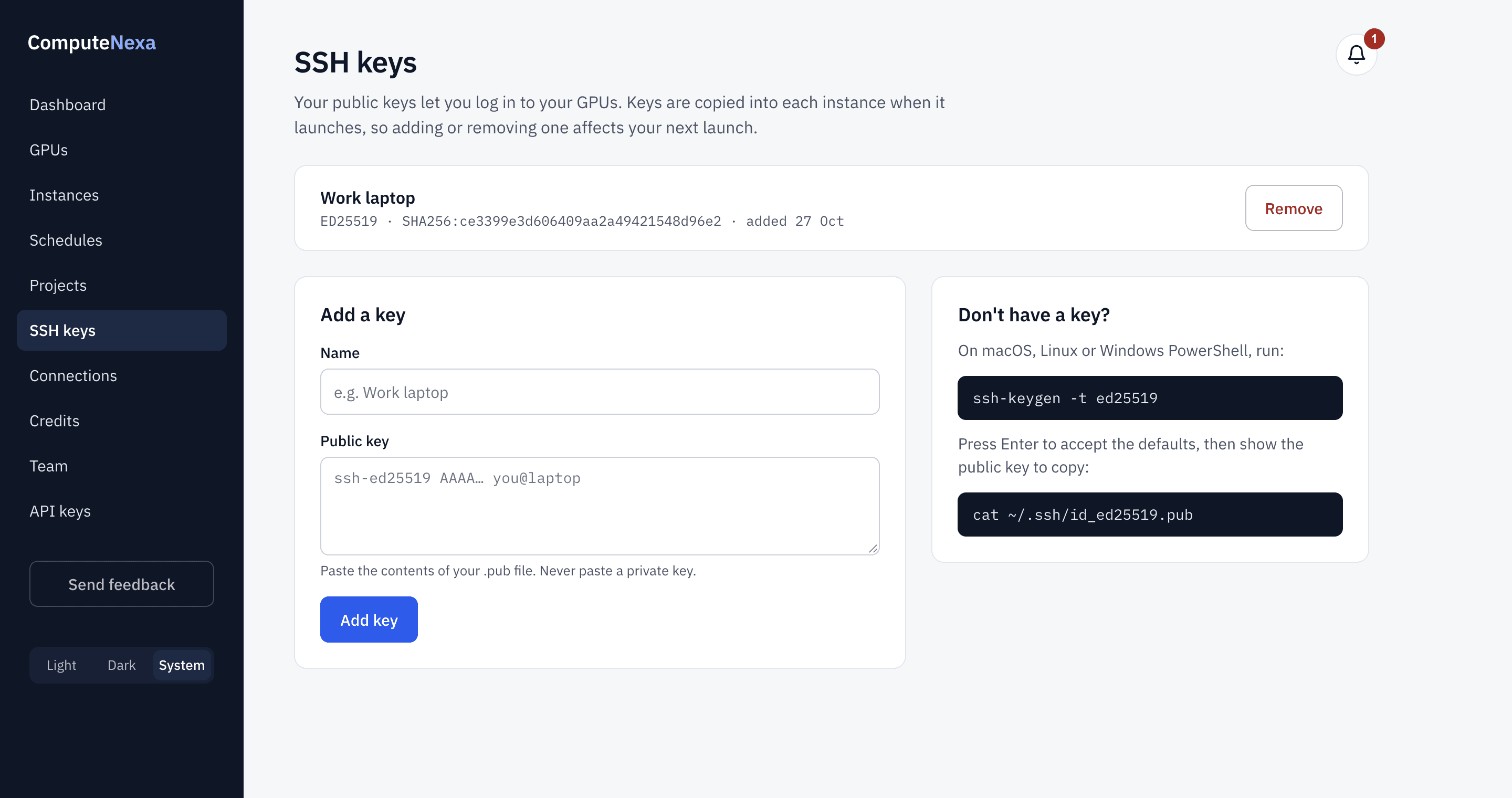
On macOS, Linux or Windows PowerShell, run, and press Enter to accept the defaults:
ssh-keygen -t ed25519Then show the public key, to copy it:
cat ~/.ssh/id_ed25519.pub            # macOS and Linux
type $env:USERPROFILE\.ssh\id_ed25519.pub   # Windows PowerShell
Add it to ComputeNexa
- Open SSH keys in the sidebar.
- Give it a name, such as "Work laptop", and paste the public key: the line starting with
ssh-ed25519. - Click Add key. Every machine you launch from now on accepts it, and machines already running get it within a minute.
Only ever paste the public key (the .pub file). Your private key never leaves your computer. Using several computers? Add a key for each.
4. Choose a GPU
Open GPUs. Each card shows the price per hour, the memory, what it's good for (for example, the largest chat model it runs) and where it runs. Use What do you want to do? to show only GPUs that fit your task, and Region to keep your machine in the United States or Canada. Click Launch on the one you want.

Not sure which GPU? For chatting with documents, 24 GB (RTX 4090, L4) runs models up to about 14 billion parameters; 48 GB (A40, L40S, RTX A6000) up to about 32 billion; 80 GB and more for the largest open models. Each card says what fits.
5. Choose your app
On the launch page, What do you want to do? sets what's on the machine when it starts. Pick the one that matches your task:
| On the launch page | In the API (image_family) | Pick it to… | AI model | SSH key |
|---|---|---|---|---|
| Private Chat | chat | Chat with open AI models about your documents, in your browser | Optional (recommended one by default) | Not needed |
| Image Generation (ComfyUI) | imagegen | Create images with SDXL or FLUX in ComfyUI, in your browser | Optional (recommended one by default) | Not needed |
| Model API (vLLM) | modelapi | An AI model behind your own API key, for your apps and scripts | Required | Not needed |
| Voice Agent | voice | Speech in, spoken AI reply out: assistants and phone agents | Required (one offered) | Not needed |
| Notebook (Jupyter) | datascience | JupyterLab with PyTorch, pandas and Hugging Face: analysis, training, fine-tuning | None | Recommended |
| Basic (SSH only) | basic | Ubuntu with CUDA and Python for your own code, over SSH or VS Code | None | Required |
Not sure? Notebook (Jupyter) suits most data and machine-learning work; Private Chat is the quickest way to use AI on your own documents. Each GPU's card lists the apps it runs, and What's in each image lists every installed package and version.
6. Launch
- What do you want to do? Pick the app (step 5).
- Model: for chat and AI apps, the recommended model for this GPU is pre-selected. It's downloaded and loaded before your time starts.
- How long: 1, 4, 8 or 24 hours, or a custom time. You can extend while it runs, up to 7 days in total.
- Project (optional): keep your files between sessions. Without a project, everything on the machine is deleted when it stops.
- Check the Summary and click Launch. The amount is taken from your credits now; if we can't start the machine, you get it all back.

7. Use it
Your machine appears on Instances. While it starts, the card shows its progress; once it says Running:
- In the browser: click Open Private Chat, Open JupyterLab or your app's button. Only you can open it.
- Over SSH: copy the Connect command into your terminal. Other ways to connect shows VS Code and SSH tunnels.
- Your own app: see Run your own app in the browser.
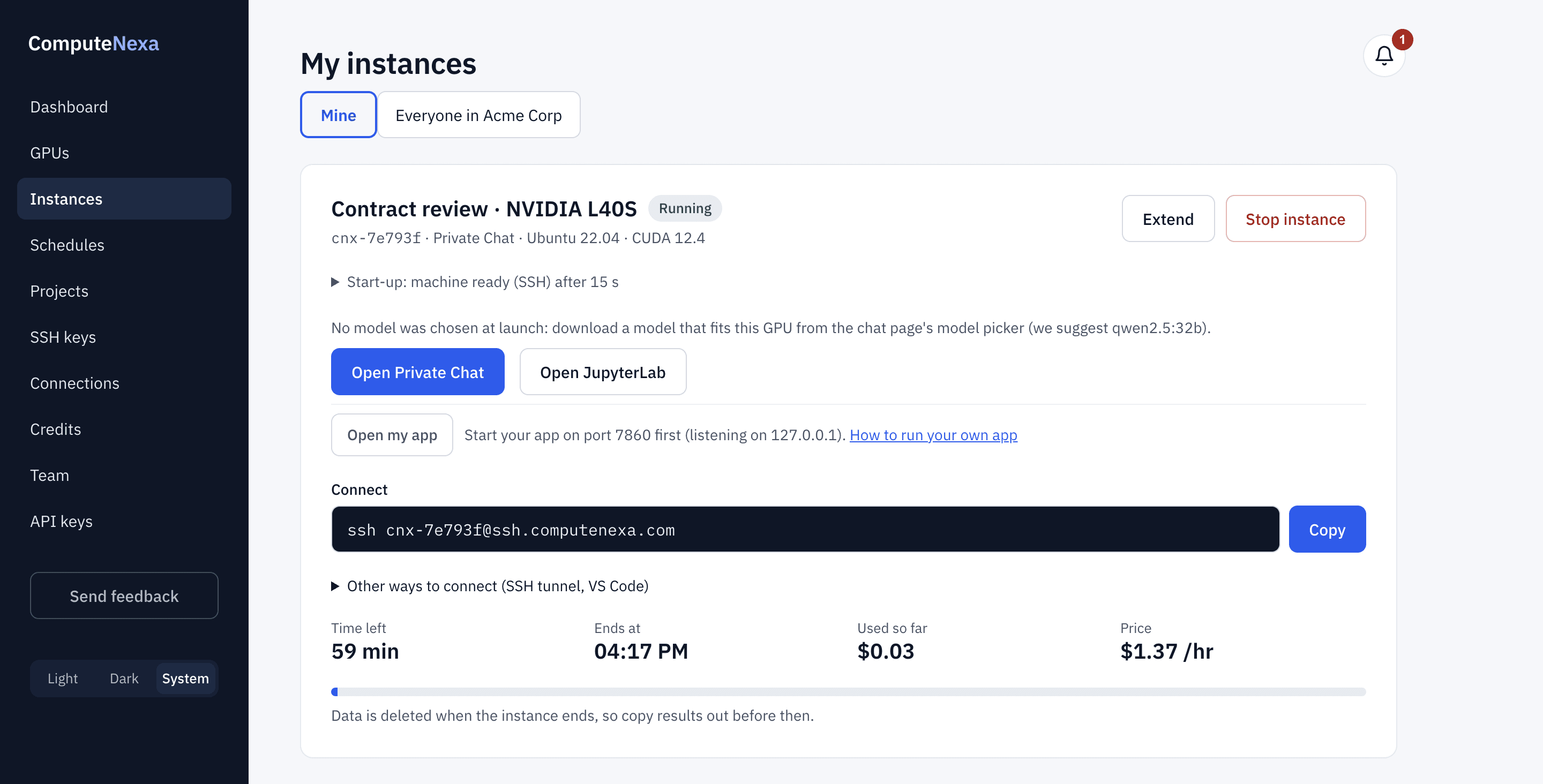
The card shows the time left, when it ends and what it has cost so far. You'll get an email and a notification shortly before your time runs out.
8. Extend or stop
- Extend adds time at the same price.
- Stop instance ends it now. Unused minutes are refunded to your credits. Everything on the machine is deleted unless it's saved in a project, so download what you need first.
- When the booked time ends, the machine stops by itself.
Pricing and privacy
- You pay per minute of GPU time. A few GPUs are billed per started hour; their card says so.
- Your machine is reserved for you: no other customer runs on your GPU.
- Your prompts and files are processed on your machine and are never used to train anyone's model.
- When a machine stops, its disk is deleted; only files you keep in a project are saved.
More guides
- Set up your organization and invite your team: One shared balance for your company: roles, invitations, GPU limits and who can see what.
- Use the ComputeNexa API: Launch, check and stop GPUs from your own scripts, CI jobs or platform with an API key.
- Python SDK: pip install computenexa: launch, use and stop GPUs from Python, with waiting and clear errors built in.
- Command-line tool (cnx): cnx launch, ls, ssh, stop: your GPUs from the terminal, scripts and CI.
- API reference: Every API operation by name (listProjects, launchInstance…), with its request and reply.
- What's in each image: Exactly what's installed in each app's images: Ubuntu, CUDA, Python, packages and versions.
- Run your own app in the browser: Open your own Streamlit, Gradio or FastAPI app on your GPU with one click.
Questions? Email support@computenexa.com.